
CUTROOM TUTORIAL · BEGINNER
Create your first documentary video with Cutroom
Start with a question. Build the story scene by scene. Finish with a film you can watch and share.
By MindblownAI · A practical guide to the beta workflow
GET CUTROOM BETABefore you start
Your first project is a three-minute, 16:9 documentary about Charles Babbage. Keep it focused on one question: what made his proposed Analytical Engine different from a calculator?
Install Cutroom Beta for Windows or Mac, sign in when prompted, and check the AI writer’s availability and credits in your account. The built-in Write with AI flow is the starting point for this guide. The separate Agent has its own connection and account requirements; you do not need it for the steps below.
Prepare a folder with a few images or clips you have permission to use, your source notes, and narration audio if you already have it. Keep credits for every borrowed asset. Beta labels and availability can change between builds.
One question. One visual style. Three minutes. Finish one scene before expanding the rest.
1. Give the documentary a clear question
From the dashboard, choose Write with AI. Enter this working title and set the finished duration to 3 minutes, then select Write script.
Charles Babbage: The Computer That Was Never Built
The title gives the draft a subject and a tension. In the narration, make clear that “the computer” refers to the proposed Analytical Engine. Do not confuse it with the Difference Engine, a different machine.
Use this editorial brief while reviewing the draft:
- Open with the idea of a mechanical machine following instructions.
- Explain the distinction between calculating tables and a programmable design.
- Introduce the proposed memory, processing, and punched-card input in plain language.
- End with the distinction between a remarkable design and a completed machine.
The Computer History Museum describes the Analytical Engine’s proposed separate memory and processing units and punched-card input, and notes that it was not built. Use its Babbage history as a starting source.
2. Review the narration before building scenes
Read the Editable narration from beginning to end. Read it aloud once: shorten sentences that are difficult to say, remove repeated points, and replace vague claims with specific explanations.
Review Claims to verify and check the complete script against your sources. An AI draft is a starting point; a checklist is not proof that every claim is correct. The Computer History Museum’s overview helps distinguish Babbage’s different engines.
When you are satisfied, select the acknowledgement that you reviewed the narration and its factual claims. Choose Approve & build scenes. This locks the reviewed narration for scene planning.
You should now have a scene plan based on the narration you approved. Read the scene stack before adding media.
3. Give each scene the assets it needs
Choose 16:9 for this exercise. Open Assets and review the global and scene-specific asset slots. Upload reusable material once, then map the media needed by each scene.
For the Babbage story, keep the visual language simple: a portrait, an engine illustration, and clear text labels. Use a labeled diagram to explain memory and processing. An illustration of an imagined machine should be identified as an illustration, not presented as an archival photograph.
Attach the narration audio required by your scene and listen to it. If you use an external voice tool, prepare the audio there and import it into Cutroom. Do not assume that writing a script has also created its spoken audio or supplied every visual asset.
4. Compose one scene and make one deliberate edit
Select the opening scene, then open Compose. The scene stack is on the left, the canvas is in the center, and the timeline is below. Select a visual layer to inspect its controls.
- Place the main image where it is easy to understand.
- Keep the title clear of the subject and readable at a smaller viewing size.
- Adjust a layer’s timing so it appears when the narration introduces it.
- Use Play scene to watch the edit in context.
For a first exercise, change just one thing: move a title away from the subject, or delay a diagram label until the matching phrase is spoken. Play the scene before and after the change.
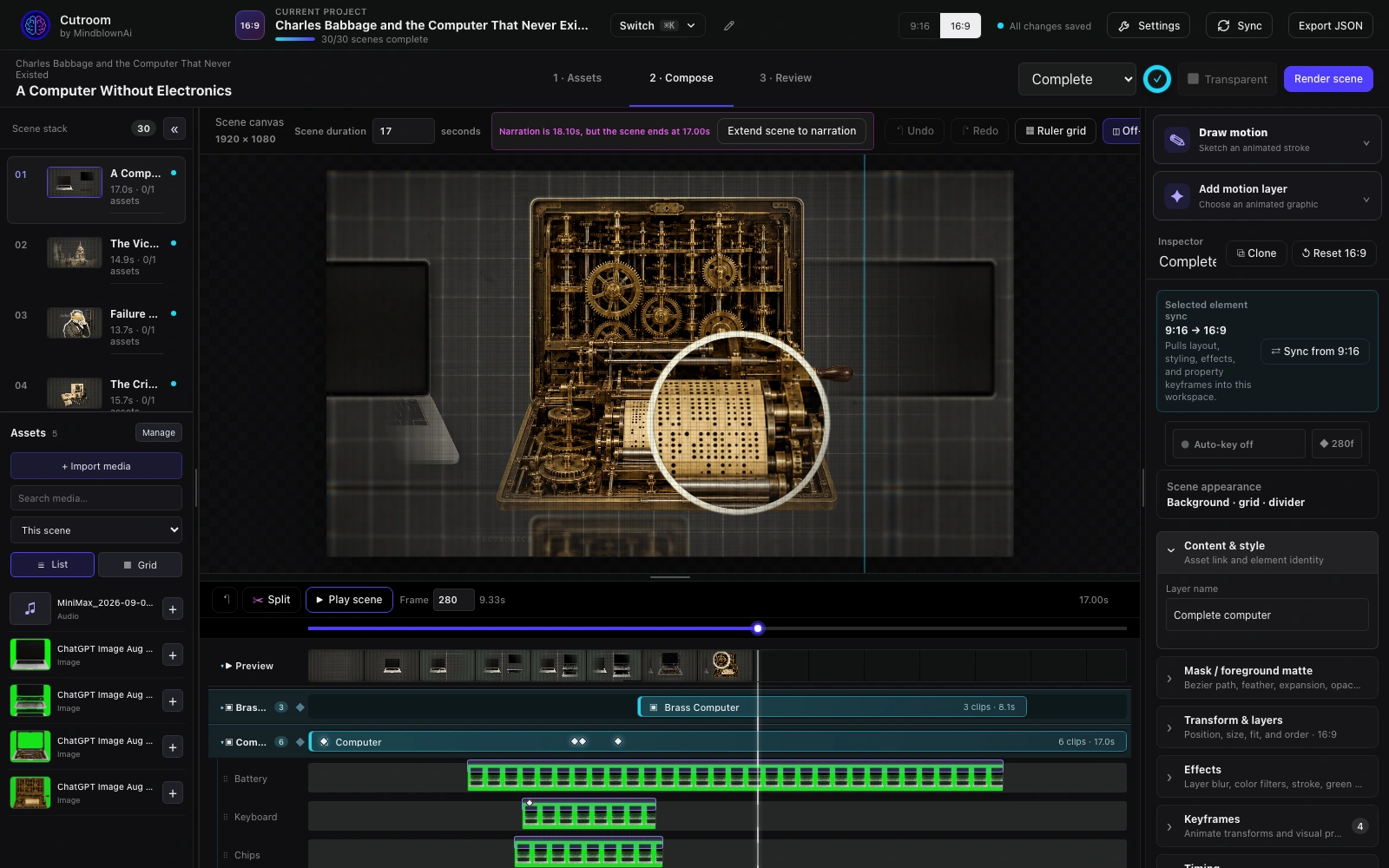
Watch the same editor workflow in this short, silent reference capture:
5. Match the scene to the narration
Listen to the full scene, including its last word. If the narration runs beyond the scene, increase Scene duration or use Extend scene to narration when that warning appears.
Check the visual layers after extending a scene: an image or title may still end too early. Adjust its timeline timing and play the scene again. Leave enough time for the viewer to read labels and understand the visual before the next idea arrives.
The narration finishes cleanly, the visuals remain visible for the intended duration, and no important text is cut off.
6. Render scenes, then assemble the film
Choose Render scene for your first completed scene. Watch its rendered output before repeating the workflow for the remaining scenes. Rendering time depends on the project and computer; wait for completion before judging the result.
Mark approved scenes complete and open Review. Confirm the scene order and active aspect ratio, then choose Render final film. When rendering finishes, open View film.
Export JSON saves the editable project data; it is not the finished video. Keep that export as a project backup, and retain the source media separately. Use the final rendered film for playback and sharing.
7. Watch once as an audience member
Play the whole exported film without editing. Check the opening, narration clarity, scene transitions, readable text, ending, and credits. Confirm that every historical claim still matches your sources after revisions.
If something fails, return to that scene, correct it, and render again. Your first milestone is a complete, understandable documentary you can improve—not a particular render time or a promise that every draft will look the same.
For a longer reference, watch Charles Babbage and the Computer That Never Existed, an existing 8-minute-17-second Cutroom film. It is an example of the tool’s output, not the expected result of this exercise.
If you get stuck
- The writer is unavailable or out of credits
- Check the account panel and the message shown by the app. Writer access and the separate Agent connection are different. Keep your source notes and draft while resolving access.
- A scene has missing media
- Return to Assets and check that each required slot points to the intended file.
- The narration is cut off
- Extend the scene to cover the audio, then check the layer end times and render the scene again.
- The final film differs from your latest edit
- Check the active aspect ratio, rerender the changed scene, and render the final film again.
YOUR NEXT CUT
Make one scene. Then make it work.
Start with the opening of your documentary. Once the narration, visuals, and timing work together, apply the same process to the rest.
DOWNLOAD CUTROOM BETA